Resolving the "SSL/TLS Secure Channel" Error in .NET Applications
Troubleshooting "Could not create SSL/TLS secure channel" in .NET: certificate store, private key permissions, TLS 1.2 and .NET 3.5.
- Published
- Versions
- AX 2012 · D365FO
- 3 min read
The error you’re encountering, “The request was aborted: Could not create SSL/TLS secure channel,” can occur due to various reasons when working with certificates and TLS in .NET environments. Here are some troubleshooting steps and solutions you can consider to resolve this issue:
1. Ensure the Certificate is Correctly Installed
- Correct Store Location: Make sure the certificate is installed in the correct store and location. You mentioned using StoreLocation.LocalMachine; ensure that the certificate is indeed there and not mistakenly placed in StoreLocation.CurrentUser.
- Permissions: The account under which your application runs might not have permissions to access the certificate from the LocalMachine store. You might need to grant the appropriate permissions to the account for the certificate. This is especially relevant for web applications running under specific service accounts.
2. Ensure the Certificate Private Key Permissions
If your application need access to Private Key, ensure user running out the application has right permission on reading it. To do this follow steps below:
- Find the Certificate in MMC: Open the Microsoft Management Console (MMC) by pressing Win + R, typing mmc, and pressing Enter. Add the Certificate Snap-in for the Local Computer account. Navigate to the Personal/Certificates folder and find your certificate.
- Manage Private Key Permissions: Right-click on the certificate, go to All Tasks > Manage Private Keys.
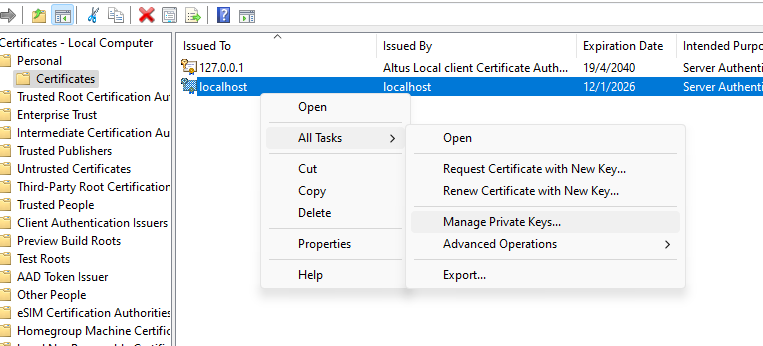
- This opens a permission dialog where you can add the user account under which your application runs.
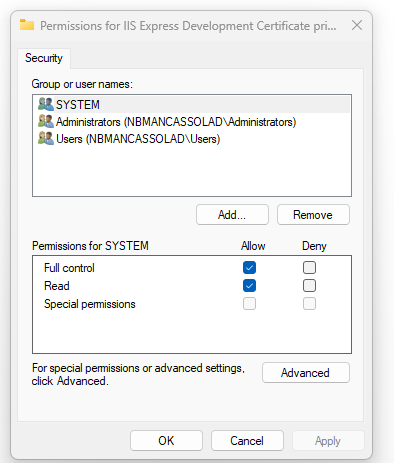
- Grant at least Read permission to the account. For web applications, this is often the application pool identity or a service identity
3. Use the Correct Certificate
Ensure you are loading the correct certificate by checking its thumbprint or subject name. It’s easy to load the wrong certificate if not careful.
4. Enable TLS 1.2 in Your Application
If your application does not explicitly enable TLS 1.2, it might attempt to use an older, less secure protocol. You can enforce TLS 1.2 with the following line of code:
System.Net.ServicePointManager.SecurityProtocol = System.Net.SecurityProtocolType.Tls12;Place this line at the start of your application, before making any requests. This ensures that your application explicitly uses TLS 1.2 for its secure connections.
5. Check Certificate Chain and Expiry
- Certificate Chain: Ensure that the entire certificate chain is trusted by the machine. Sometimes, intermediate certificates are missing or not correctly installed.
- Expiry: Check if the certificate or any certificate in the chain has not expired.
6. Debugging SSL/TLS Issues
- Logging: Use logging to capture more details about the failure. .NET can provide detailed logs that can help pinpoint the issue.
- Network Monitoring Tools: Tools like Wireshark can help you see the TLS handshake and where it might be failing.
- Microsoft Management Console (MMC): Use MMC to inspect the certificates installed on the machine to ensure they are correctly installed and have the necessary private keys.
7. Application Pool Identity (For Web Applications)
If you’re developing a web application, ensure that the application pool identity has access to the certificate. This can be an issue when certificates are stored in the LocalMachine store.
8. Update .NET Framework
Ensure you’re using a version of the .NET Framework that supports TLS 1.2 fully and has the latest security patches. Sometimes, simply updating .NET can resolve these issues.
9. Support for TLS System Default Versions included in the .NET Framework 3.5
The .NET framework version 3.5 SP1 and earlier versions did not provide support for applications to use Transport Layer Security (TLS) System Default Versions as a cryptographic protocol. This update enables the use of TLS v1.2 in the .NET Framework 3.5 SP1.
To ensure support of TLS 1.2 on your .NET 3.5 add on your code these two classes
SecurityProtocolTypeExtensions.cs
namespace System.Net
{
    using System.Security.Authentication;
    public static class SecurityProtocolTypeExtensions
    {
        public const SecurityProtocolType Tls12 = (SecurityProtocolType)SslProtocolsExtensions.Tls12;
        public const SecurityProtocolType Tls11 = (SecurityProtocolType)SslProtocolsExtensions.Tls11;
        public const SecurityProtocolType SystemDefault = (SecurityProtocolType)0;
    }
}
SslProtocolsExtensions.cs
namespace System.Security.Authentication
{
    public static class SslProtocolsExtensions
    {
        public const SslProtocols Tls12 = (SslProtocols)0x00000C00;
        public const SslProtocols Tls11 = (SslProtocols)0x00000300;
    }
}
To include the support for TLS v1.2, include the source files in your project and then set the protocol version by using
System.Net.ServicePointManager.SecurityProtocol = SecurityProtocolTypeExtensions.Tls12;