D365FO Copilot Code Review
An Azure DevOps gated check-in task that uses GitHub Copilot CLI to review X++ changes against warning and blocking prompts.
- Published
- Versions
- D365FO
- 8 min read
Code quality in X++ is a topic that has always been particularly important to me.
In many Dynamics 365 Finance & Operations projects, code reviews often happen only after development is already completed. At that point, the focus is usually on validating functionality rather than carefully analyzing design choices, performance implications, or adherence to best practices.
The problem with this approach is that issues are discovered too late.
When code that doesn’t follow X++ best practices or performance guidelines reaches the shared branch, the consequences usually appear later: unexpected performance bottlenecks, inefficient queries, or patterns that don’t scale well in production environments. And when that happens, the real cost begins.
Often spend many hours investigating performance issues, trying to understand where the problem originates. Then additional time is required to refactor the code and improve performance, sometimes touching multiple components that depend on it. In other words, something that could have been identified in minutes during development turns into hours or even days of troubleshooting later.
For this reason, I started thinking about a simple question:
What if we could move code review earlier in the development process and automatically detect potential issues before the code even reaches the shared branch?
And in the current era of AI, it felt natural to explore how it could be leveraged to automate part of this process, helping developers identify potential issues in their X++ code before the check-in is completed.
Source code here: https://github.com/diegomancassola23/d365fo.copilot.code-review
Architecture Overview
The idea behind the solution is intentionally simple: integrate an AI-assisted code review directly inside the Azure DevOps gated check-in pipeline.
At a high level, the implementation is based on Copilot CLI, which is used as the engine to analyze the X++ code and evaluate it against best practices. The pipeline itself uses a PowerShell task whose responsibility is to invoke the Copilot CLI and orchestrate the analysis process.
The workflow can be summarized as follows:
- Gated check-in is triggered in Azure DevOps.
- The pipeline executes a PowerShell task.
- The script invokes Copilot CLI to analyze the modified X++ code.
- The analysis is guided by a base prompt embedded in the task logic and some additional prompts that can steer the review behavior depending on the scenario. Details below.
- Based on the evaluation, the task produces a Success / Failed outcome, which block the pipeline if critical best practice violations are detected.
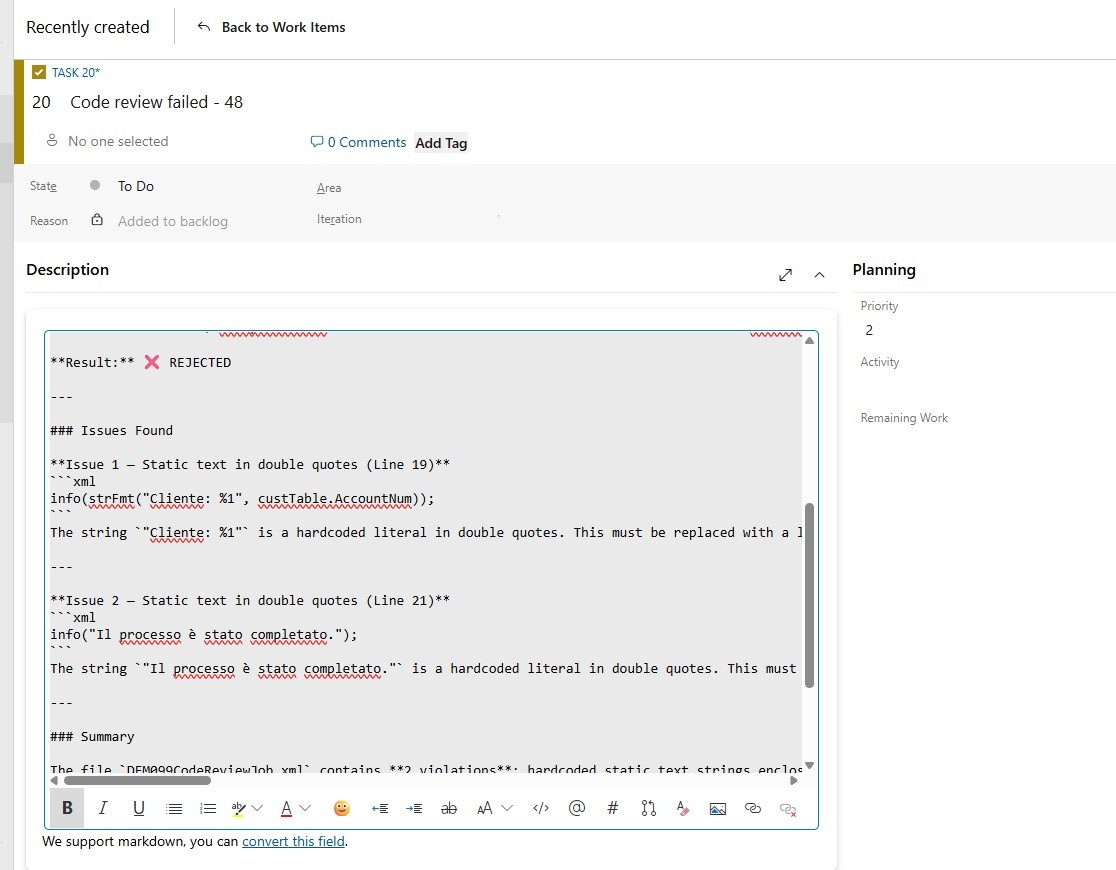
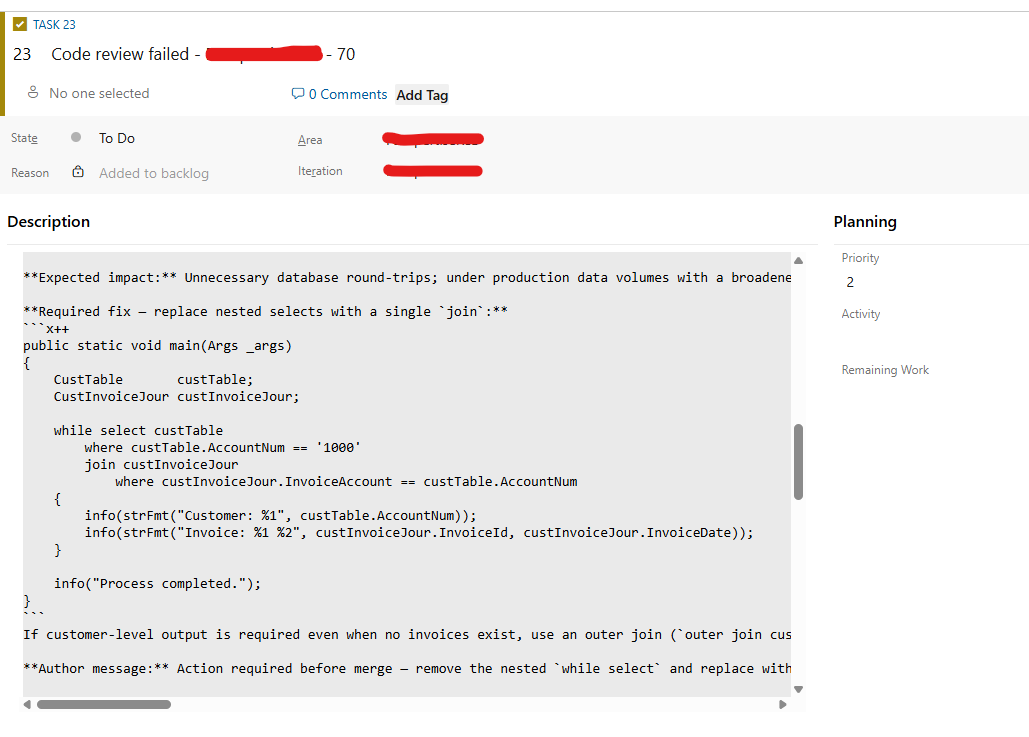
Regardless of the pipeline result, the process also creates a Task work item containing the detailed list of detected best practice issues. This allows the team to track, review, and address them systematically.
You can decide if fail the entire pipeline of not.
Getting Started
Before hands on, this task works on TFVC gated checkin, in near feature it’s plausible to migrate on GIT, but i think a lot of things will change, and my intention is now to get a tool ready to use in actual approach on X++ development.
Before looking at the internal mechanics of the solution, let’s start with the practical part: how to install and configure the task in Azure DevOps. The setup process is intentionally straightforward and can be summarized in two main steps:
- Install the extension from the Visual Studio Marketplace
- Configure the task inside an Azure DevOps pipeline
1. Install the Extension
The first step is to install the extension from the Visual Studio Marketplace into your Azure DevOps organization.
https://marketplace.visualstudio.com/items?itemName=DiegoMancassola.d365fo-copilot-code-review
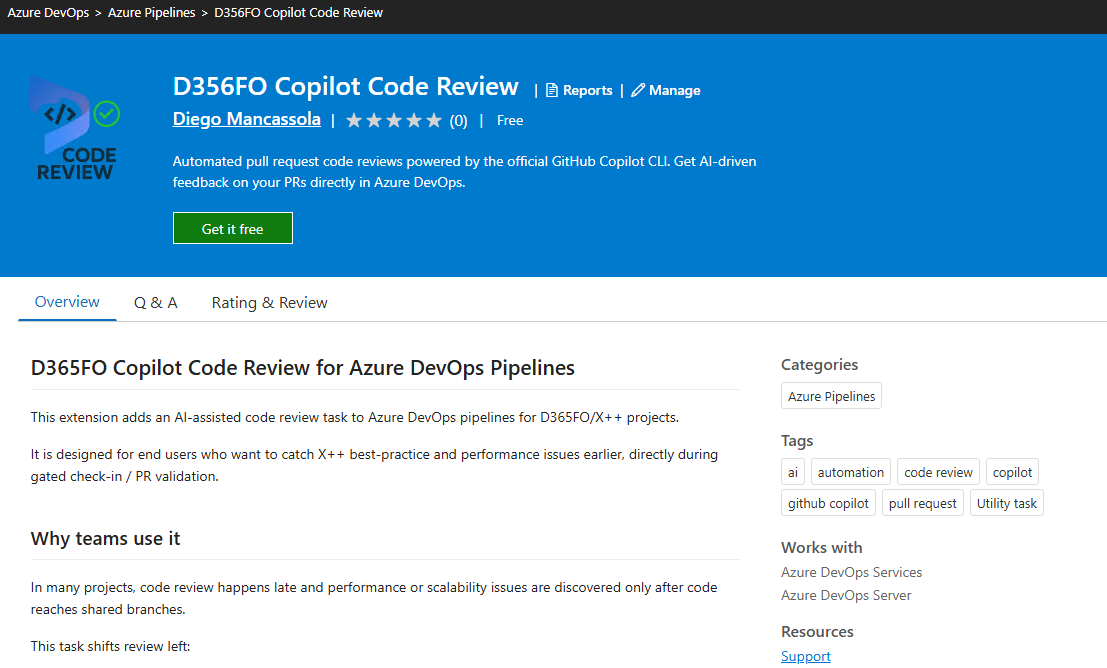
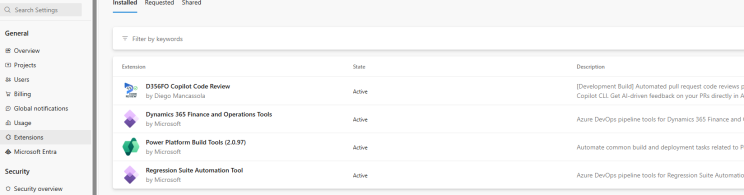
Now, select “Get it Free” and install it on your Organization, wait for it, when finished you can find the Extension on Organization Settings > Extension
2. Add task to Pipeline
Once the extension is installed, the next step is to integrate the task inside your build or gated check-in pipeline. The pipeline can be configured either through the classic pipeline editor or using a YAML pipeline definition. For our demonstration scope i use the classic editor. The YAML is available soon on GIT repository.
Add a task and search for Code Review

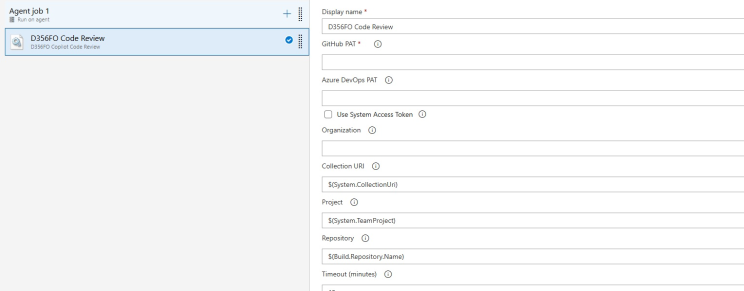
Here the all settings list, in evidence the mandatory parameters you must set.
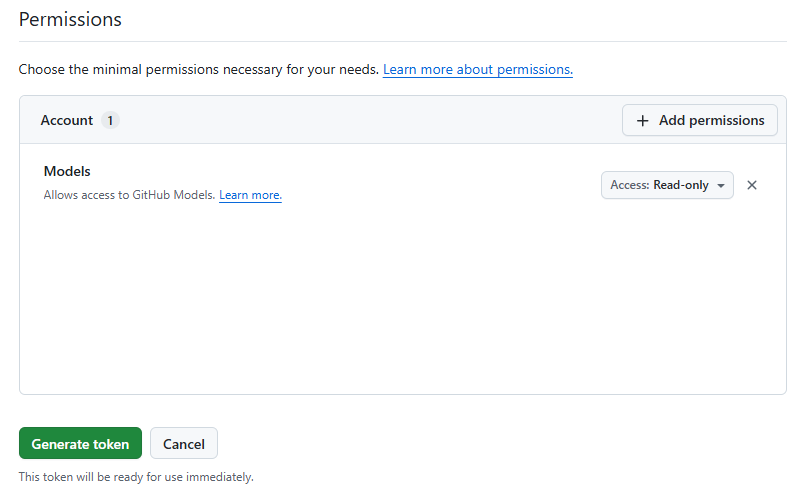
- GitHub PAT: Token used to authenticate GitHub Copilot CLI. Required. It’s the way to access your copilot functionality.
- Navigate on Settings of you Git account
- Go to Development Settings
- Select Personal Access Token
- Create a new fine gained token and select name and privacy you prefer
- Add a permission to Access GitHub Models in Read-only
- Generate you token
If your user account is part of a GitHub organization, ensure the organization admin goes to GitHub Policies > Copilot > Copilot CLI and sets the policy to Enabled everywhere
- Azure DevOps PAT: Token used to read Azure DevOps context
- Use System Access Token: Uses pipeline OAuth token instead of Azure DevOps PAT
- Organization: Azure DevOps organization name > https://dev.azure.com/myorg
- Collection URI: Full Azure DevOps collection URL > $(System.CollectionUri)
- Project: Azure DevOps project to review. > $(System.TeamProject)
- Repository: Repository containing the changes. > $(Build.Repository.Name)
- Timeout (minutes): Maximum allowed time for the Copilot review run. > Set15
- Copilot Model: Set copilot model > claude-sonnet-4.6
https://docs.github.com/en/copilot/reference/ai-models/supported-models
- Fail Pipeline on Blocking Findings: Set if the pipeline fail in case of blocking issue found
Using this flag you can decide if use the task as a suggestion of the work done by developer or if you want to block the entire changeset if major blocking found on review.
- Custom Prompt File: File-based custom prompt (legacy mode).
- Custom Prompt: Inline custom prompt text (legacy mode).
- Warning Checks Prompt: Inline non-blocking checks (reported as warnings only).
- Warning Checks Prompt File: File-based warning checks.
- Blocking Checks Prompt: Inline blocking checks (violations must reject).
- Blocking Checks Prompt File: File-based blocking checks.
- Raw Prompt: Full raw prompt passed directly to Copilot (advanced mode).
- Raw Prompt File: File-based raw prompt (advanced mode).
- Author Filter: Comma-separated author emails to limit when the task runs.
Prompt Strategy
The task comes with a predefined base prompt that is embedded directly in the tool. This prompt provides a default set of instructions to guide the AI in analyzing X++ code and identifying common best practice violations.
However, the behavior of the review can be fully customized.
If a custom prompt is provided (either inline or via file), it will override the default prompt and take priority during execution. This allows teams to tailor the analysis based on:
- specific project guidelines
- internal coding standards
- performance rules
- architectural constraints
This approach ensures that the tool works out-of-the-box, while still offering the flexibility to adapt the AI review to different project needs.
Warning and Blocking Prompts
One of the most powerful aspects of this approach is the ability to control the behavior of the AI reviewer through prompts.
The task supports two distinct prompt categories.
Warning Checks Prompt is used to define non-blocking check, issues detected here are reported as warnings and the pipeline continues successfully
Here’s an example of a warning prompt: Classify as WARNING only issues related to code style and maintainability that do NOT impact runtime behavior, data correctness, or system stability. Examples: inconsistent naming, formatting/style issues, method/member ordering, missing or improvable comments, minor stylistic inconsistencies. Never escalate these cases to BLOCKING.
Blocking Checks Prompt is Used to define critical violations. If the AI detects one of these conditions, the task returns Failed. The pipeline is rejected, preventing the check-in
Here’s an example of a blocking prompt: Classify as BLOCKING any performance or reliability best-practice violation with real runtime impact. Examples: queries inside loops, N+1 queries, non-optimized selects on large datasets, missing proper where/index usage in critical paths, repeated expensive calls, patterns causing performance degradation, timeouts, or lock contention. If unsure, assess risk under production-like data volume: if risk is medium/high, keep it BLOCKING. For each blocking issue, provide: title, technical evidence, expected impact (latency/throughput/resource usage), and a concrete high-priority fix.
How it works
To see how the process works in practice, let’s walk through a simple scenario.
A developer performs a check-in from Visual Studio against the Azure DevOps repository, just like in a standard D365FO development workflow.
Because the branch is configured with gated check-in, the commit does not immediately reach the shared branch. Instead, it triggers the Azure DevOps pipeline where the AI review task is executed.
Assume you have this piece of code:
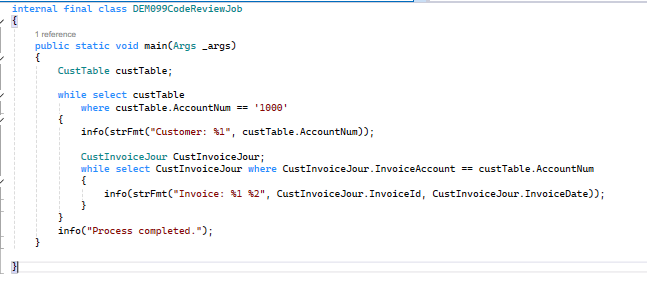
The pipeline then performs the following steps:
- The gated check-in build is triggered
- The pipeline starts and executes the AI Code Review task
- The task invokes Copilot CLI through the PowerShell script
- Only the modified X++ code is analyzed against the configured prompts
- The pipeline receives a Success or Failed result depending on the detected violations
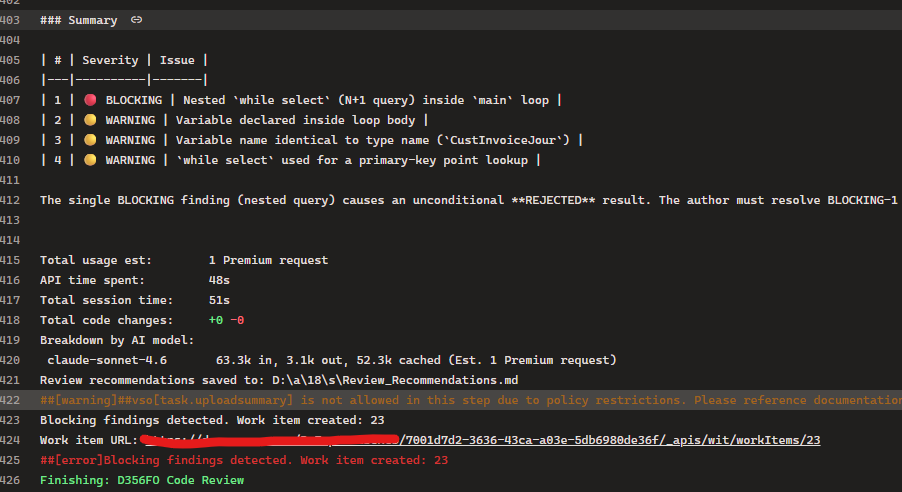
Code Review Task
A new task is created with details of Code Review.
- Assigned to gated author
- Named likely the gated comments
- A link to parent task will created if the gated is associated to a task
Future Improvements
While the current implementation is already providing value, there are several areas I’d like to improve moving forward.
One of the limitations today is how the feedback is presented. The review output is currently generated in Markdown format within the pipeline task, which works but is not always the most user-friendly or integrated experience for developers. This can definitely be improved.
A natural next step would be to evolve the solution towards a more Git-based integration, aligning better with pull request workflows and Microsoft’s recommended practices.
The goal would be to:
- surface comments directly inside pull requests
- provide inline feedback on specific lines of code
- make the review experience more native and actionable for developers
This would significantly enhance usability and bring the tool closer to a true automated reviewer experience within Azure DevOps.
Disclaimer
This article has been written with the support of AI tools to help structure and refine the content.
However, all concepts, implementations, and technical details have been personally reviewed and validated by me, step by step, to ensure accuracy and real-world applicability.
This project was initially inspired by and derived from a porting of the following repository:
https://github.com/little-fort/ado-copilot-code-review
Starting from that foundation, I adapted and extended the solution to better fit Dynamics 365 Finance & Operations scenarios,